

Welcome back to Know Your Portal! Our new series of short, helpful guides designed to show you how to get the most out of your ParentShield SIM. In each instalment, we’ll take a closer look at a specific feature, with a quick video walkthrough to help you understand how everything works.
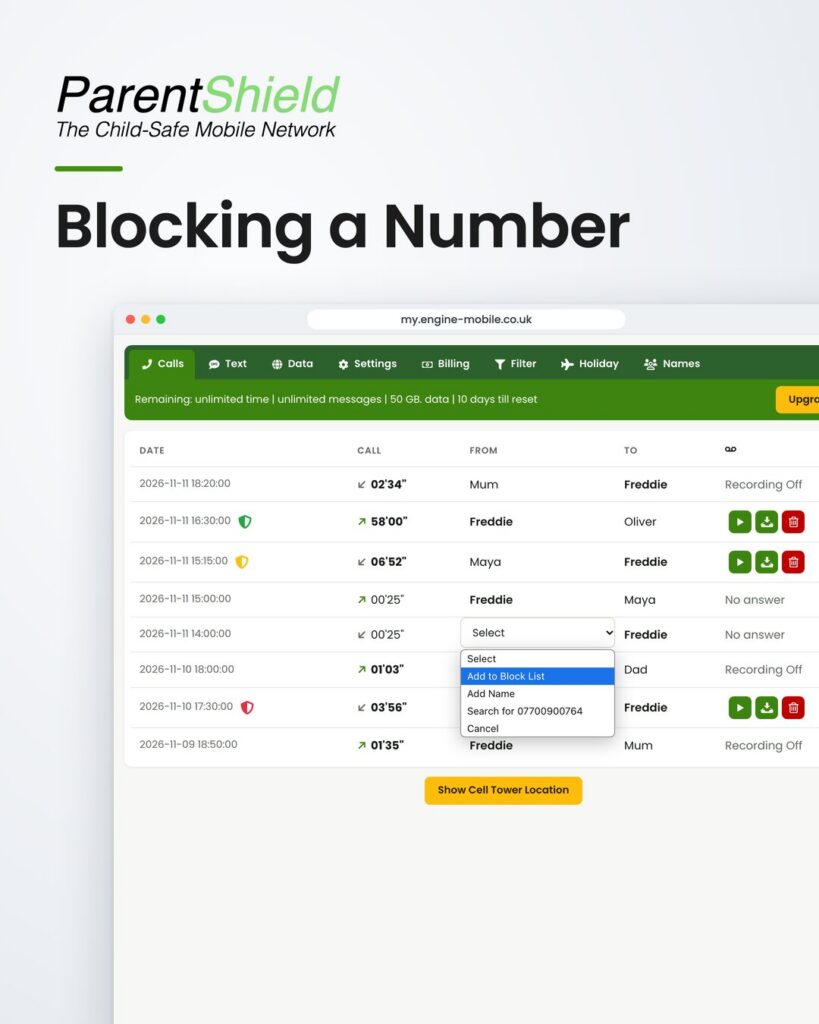
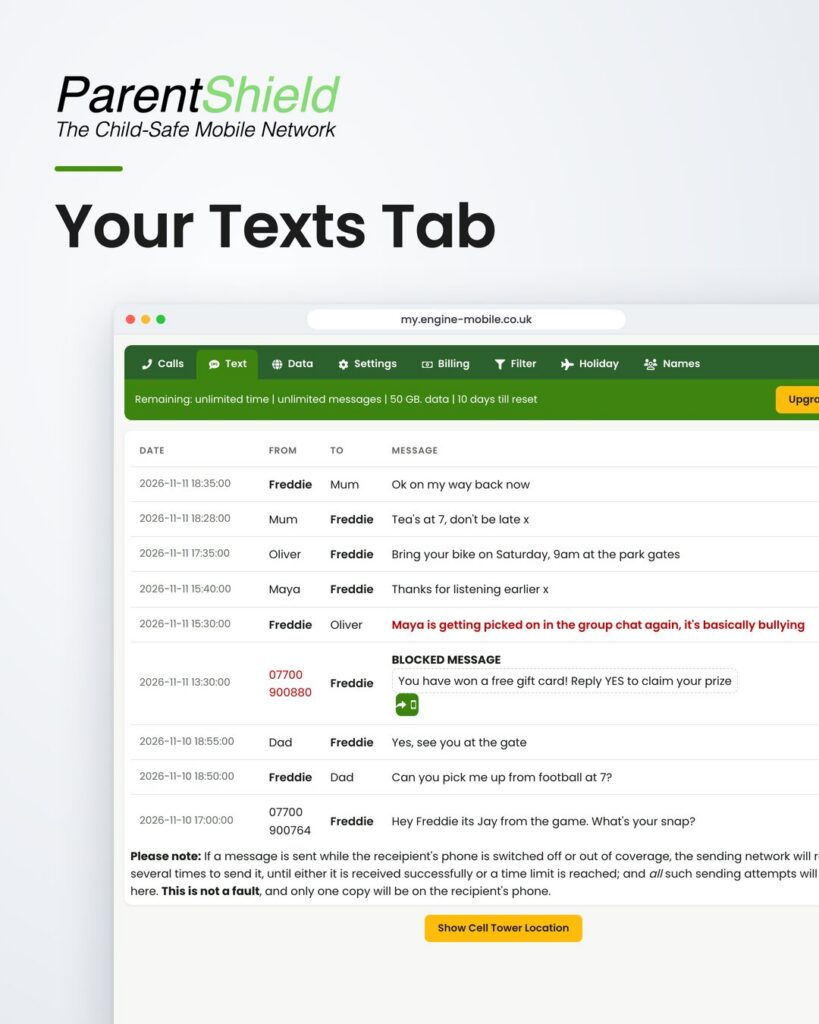
If you notice a number you don’t recognise or want to block, simply click on the number through either recording tab and select ‘Add to Block List’
Yes, it’s that easy!
Blocking Unwanted Callers
Take Control of Who Can Contact Your Child
Whether it’s an unwanted caller, an unfamiliar number or someone you’d rather your child didn’t communicate with, ParentShield makes it easy to take action.
Unlike traditional mobile networks, ParentShield allows you to manage blocked numbers directly through your online portal, without needing access to your child’s phone.
And the best part? It only takes a few clicks.
How to Block a Number From the Recording Tabs.
If you’ve spotted a number in your child’s call or text history that you’d like to block, here’s what to do:
- Log in to your ParentShield Portal and open either recording tab.
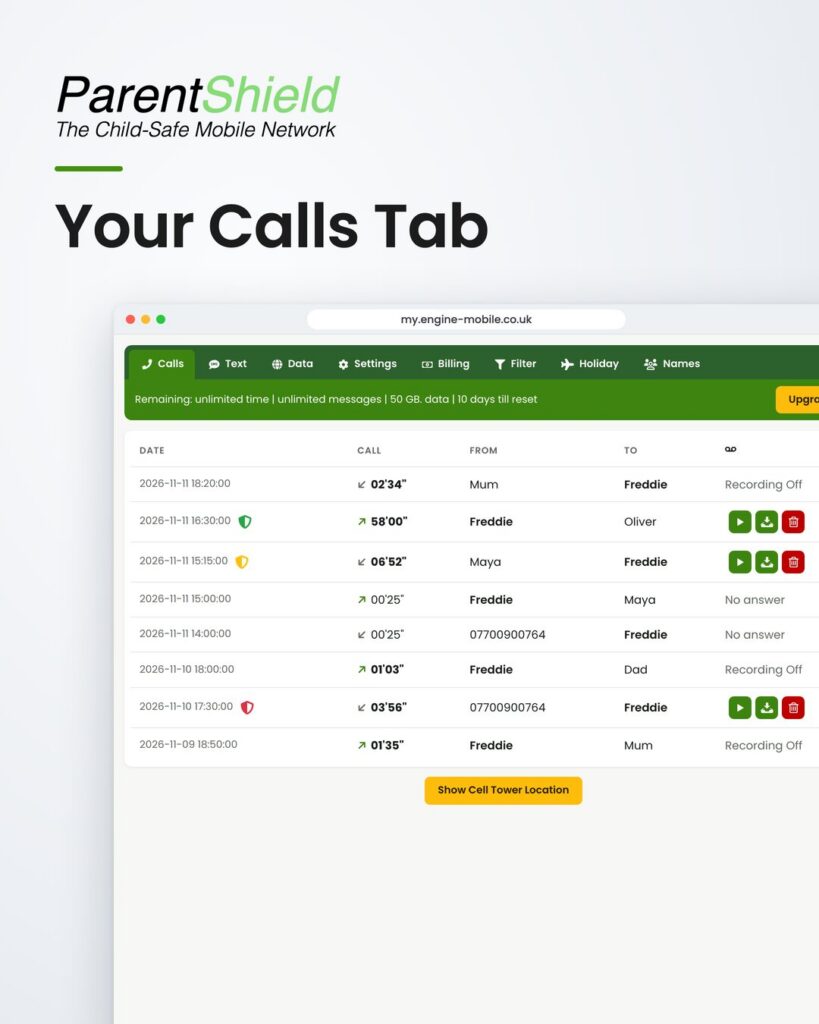
- Find the number you’d like to block in the history.
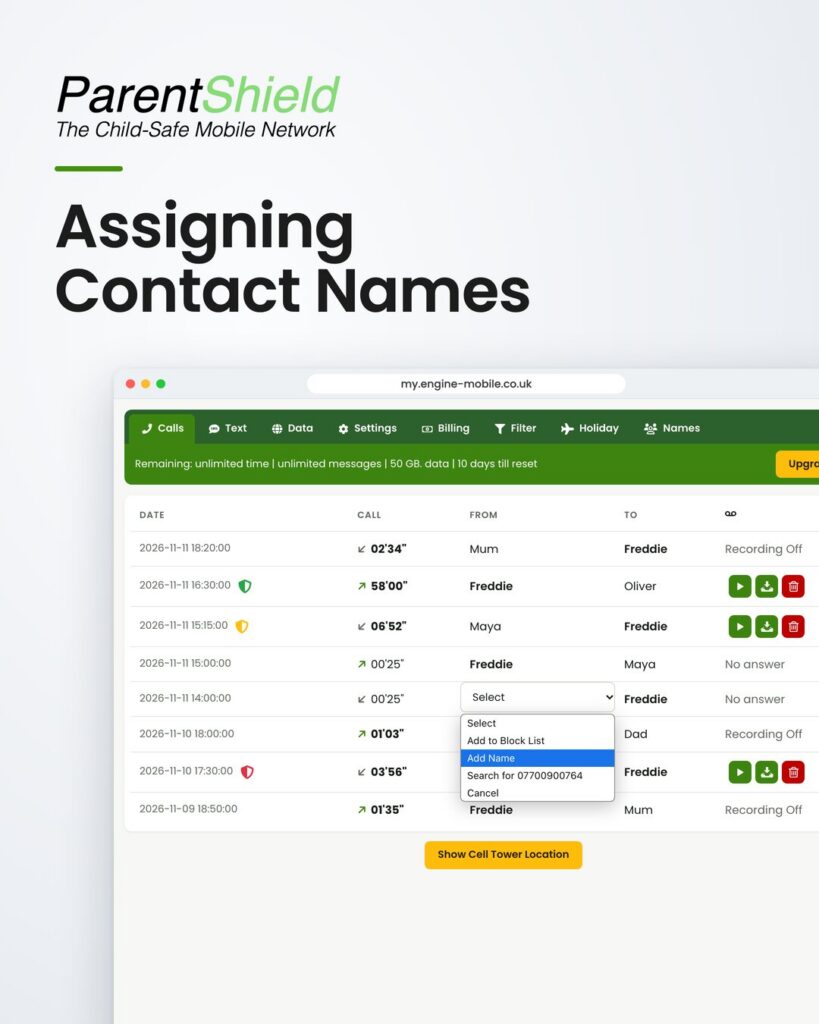
- Click on the phone number to enter the dropdown menu.
- Select ‘Add to Block List’
That’s it! The number is added to your ParentShield Block List, preventing further standard mobile calls and SMS communications between that number and your child’s ParentShield SIM.
Why is this Useful?
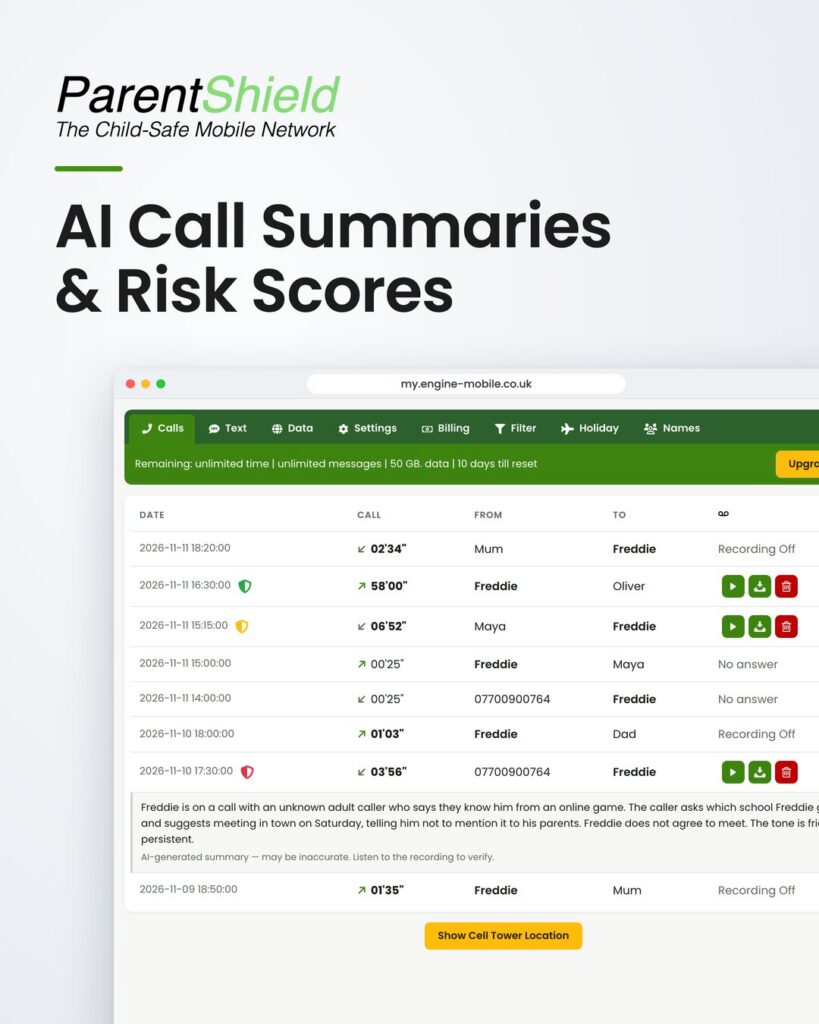
Children can sometimes receive calls from numbers they don’t recognise, and it’s not always obvious whether a caller is someone they should be speaking to.
Being able to block a number directly from the call history means you can act quickly when something doesn’t look right.
For more information, have a read through our Caller Blocking post.
Explore More: Know Your Portal
More Episodes Coming Soon!
We’re releasing a Know Your Portal episode every Monday to Friday until all 14 episodes have been covered.
If you click on an episode and its page isn’t available yet, don’t worry – It simply means that guide hasn’t been published. Keep an eye on our website and check back soon for the next instalment!